


What is a Report?
Reports offer administrators and end users a high-level, snapshot view of revenue and key performance indicators. They are customizable and shareable.
Note: Users can only generate reports for customers to which they have access.
Using Reports
Find and create reports
- Select the Reports tab on the top left of the home page.
- A pop up window will appear. Click Get Started.
- Click Add New Report.
- A pop up box will appear. Enter a name for the report and click on Password - involve.ai will auto-generate a password for you to use.
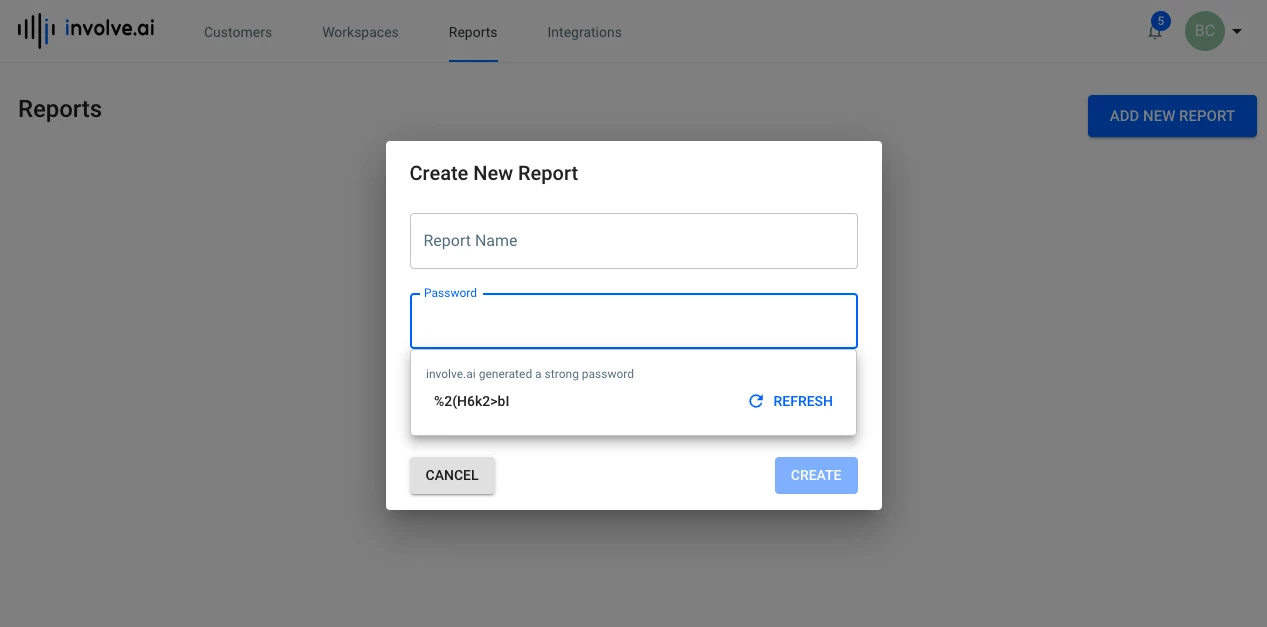
- Select whether to use the default report template or to create your own, and click Create.
- If you chose to use the default template, you will generate a report that includes:
- Revenue
- Customer
- Interaction Frequency
- Product Usage
- NPS/CSAT
- Number of Support Tickets
- Severity of Support Tickets
- involve.ai Customer Health
- Customer Owner Pulse
- Customer Sentiment
- If you chose to create a new template, you will generate a blank template. Select the data that will appear.
- To add a new data display, click Add New Block and select either Revenue Analytics or Customer Analytics.
- To add a chart, select Add New Chart.
- A pop up will appear. Select up to five different data elements.
- A preview of the chart will populate. If the preview is correct, click Add.
Share a report
- Once you have created a report, select Share in the upper right.
- A pop up window will appear. Copy the Report Link to share with others.
- Optionally, set an expiration date to ensure users aren’t viewing outdated information.